QT5 User Guide
Install Qt Creator
The following example illustrates how to install Qt Creator on Ubuntu.
- Install the Build Essential package.
``shell sudo apt-get install build-essential ``
- Install Qt Creator.
``shell sudo apt-get install qtcreator ``
- Install the QT5-related environment.
``shell sudo apt-get install qtbase5-dev qtchooser qt5-qmake qtbase5-dev-tools qtbase5-examples qt5-doc qtbase5-doc-html ``
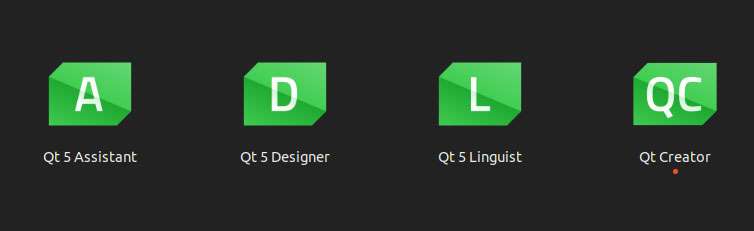
The following applications will be displayed.
Compile Qt programs
1. Click the Qt Creator icon to enter the application.
2. Choose Tools > Options. In the pop-up window, click Qt Versions and click Add.
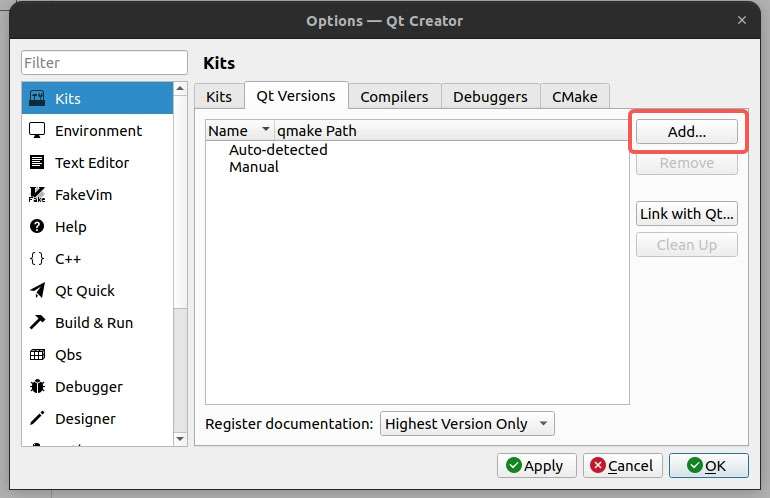
3. Select qmake under /usr/bin.
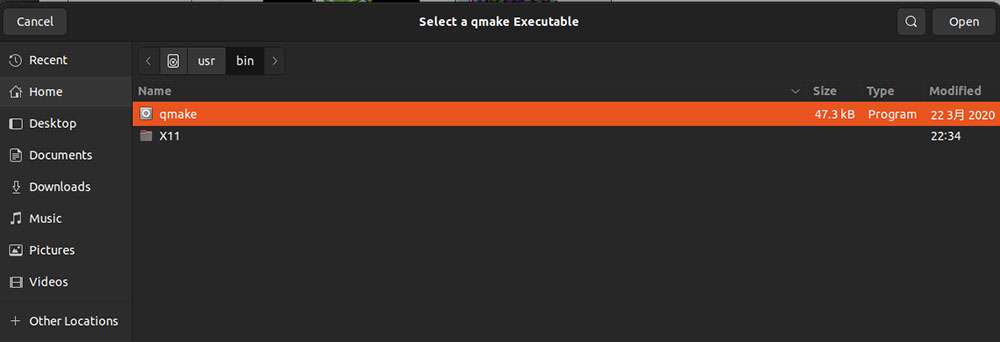
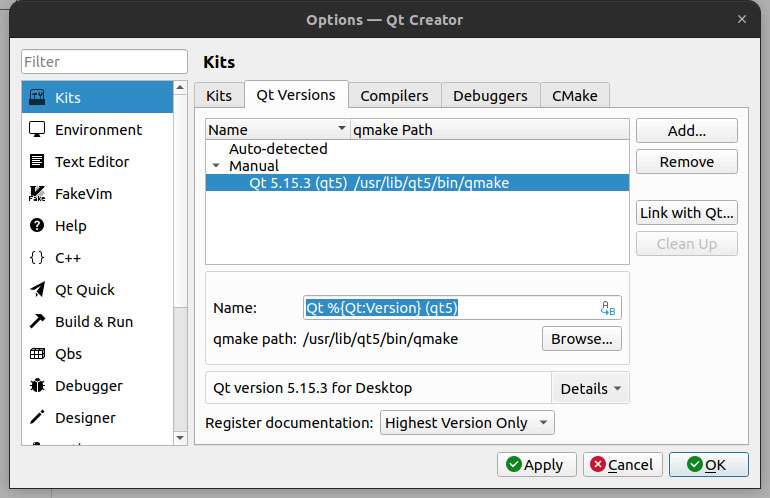
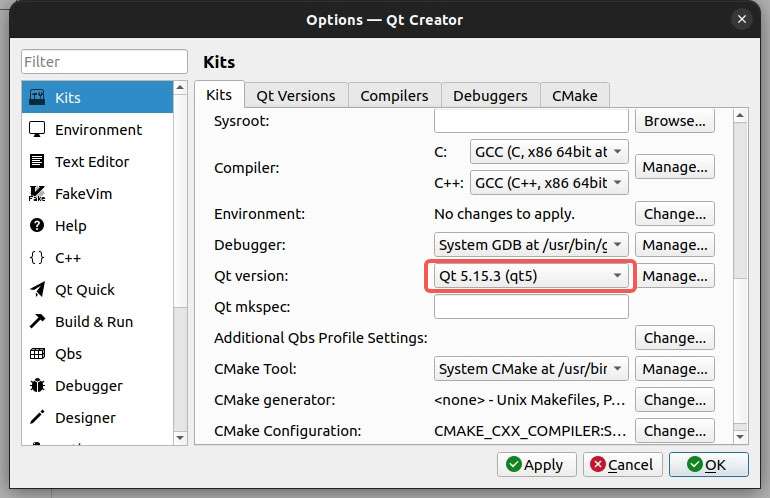
4. Click Kits, scroll down, set the Qt version to Qt5.15.3, and click OK.
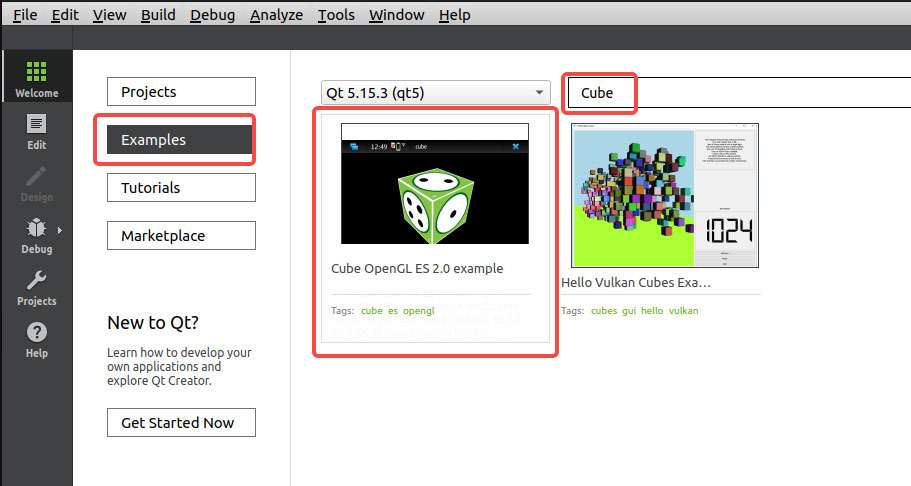
5. Click Examples, type "Cube" in the input field, and click Cube OpenGL ES 2.0 example.
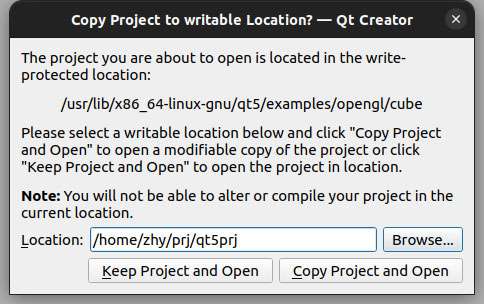
6. In the pop-up window, click Keep Project and Open or Copy Project and Open as needed.
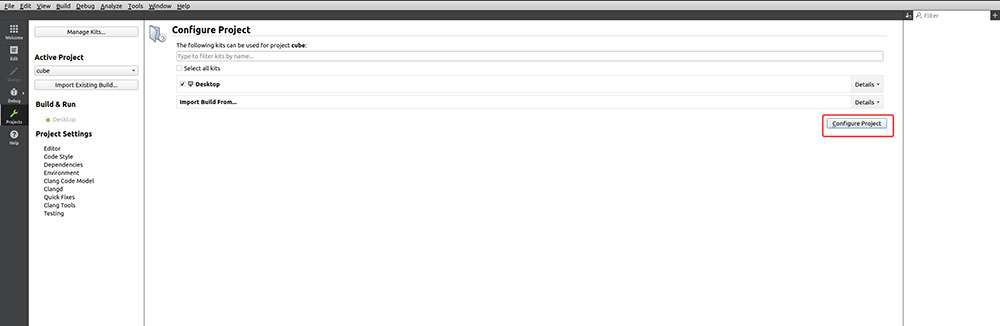
7. Click Configure Project to enter the project.
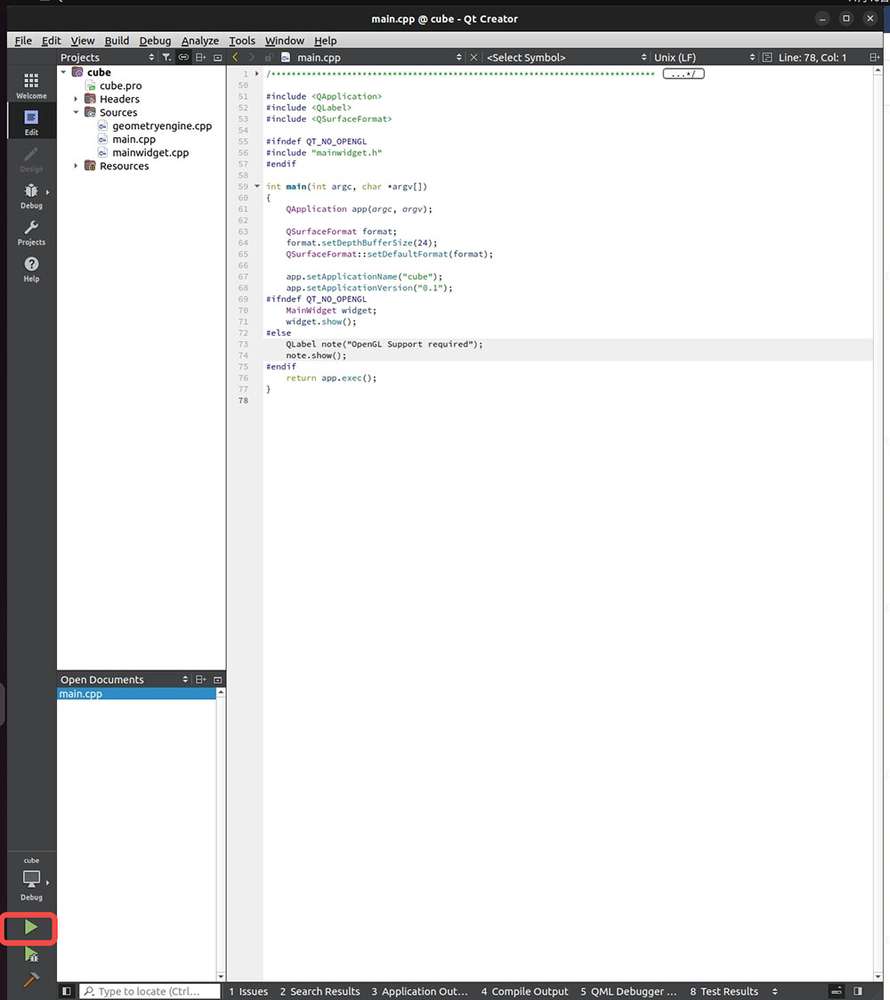
8. Click the play icon to run the project.
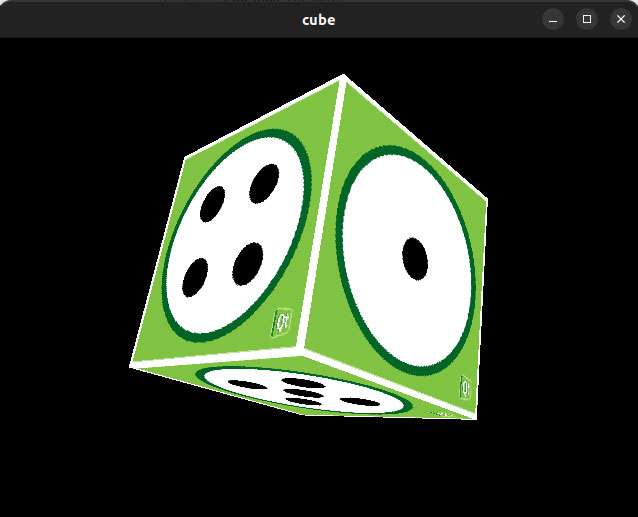
The project is successfully run. The next step is cross-compilation.
1. Set up the cross-compilation environment. For details, refer to Install cross-compilation tools.
``shell source <your toolchains directory>/environment-setup-armv8-2a-qcom-linux ``
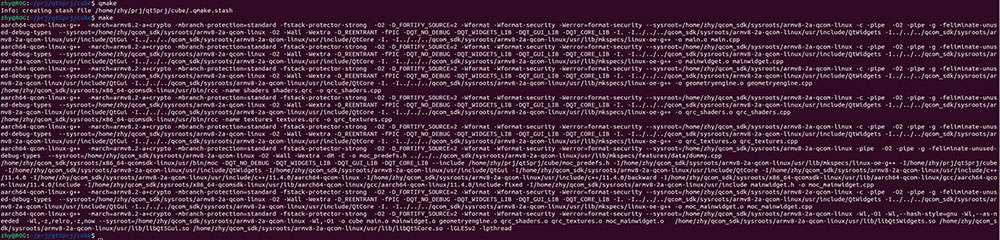
2. Go to the project's source directory and execute qmke to generate the Makefile.
``shell qmake ``

3. Run the qmake and make commands for compilation.
4. Transfer the compilation artifact to IQ9:

Configure the runtime environment
Qt chooses a default Qt Platform Abstraction (QPA) plug-in based on the platform. Alternatively, set the QT_QPA_PLATFORM environment variable or -platform command line parameter to select another platform plug-in. Commonly used platform plug-ins include LinuxFB, Wayland, and EGLFS.
- LinuxFB
LinuxFB is displayed through Linux Framebuffer Device (FBDEV), which does not support hardware rendering, possibly resulting in poor display performance.
- Wayland
Wayland is a display service protocol that does not rely on a client-server architecture and is intended to replace the X Window System with a modern and safe Linux or other Unix-like operating system. Weston is the implementation reference of the Wayland open-source display protocol.
- EGLFS
EGLFS is a GUI system implemented by Qt, which does not support multiple windows. EGLFS uses OpenGL ES or EGL for GPU rendering and then sends signals directly to Direct Rendering Manager (DRM) for display.
EGLFS is the recommended plug-in for Embedded Linux devices that include a GPU.
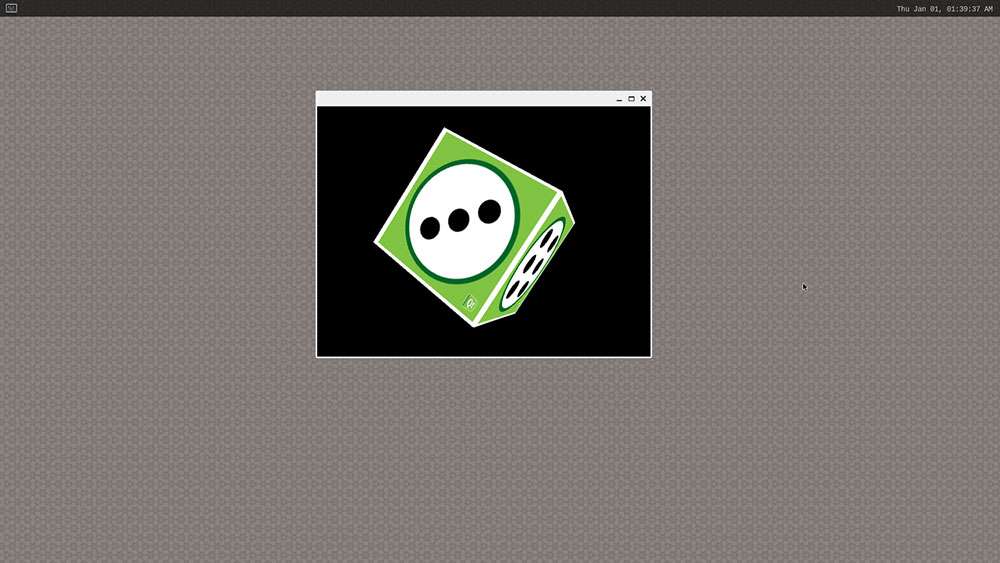
It is recommended to use Wayland on IQ9:
export XDG_RUNTIME_DIR=/dev/socket/weston
export WAYLAND_DISPLAY=wayland-1
export QT_QPA_PLATFORM='wayland'
cd /opt
./cube
PyQt5
IQ9 supports PyQt5. The following is an example of PyQt5 demo.
import sys
from PyQt5.QtWidgets import QApplication, QWidget

app = QApplication(sys.argv)

w = QWidget()
w.resize(550, 500)
w.move(600, 300)
w.setWindowTitle('IQ9 PyQt5 demo title')
w.show()
sys.exit(app.exec_())
Transfer pyqt5.py to IQ9. For example, use the ADB method.
adb push pyqt5.py /opt
Run the following commands on IQ9 to run the demo.
export XDG_RUNTIME_DIR=/dev/socket/weston
export WAYLAND_DISPLAY=wayland-1
export QT_QPA_PLATFORM='wayland'
cd /opt
python3 pyqt5.py
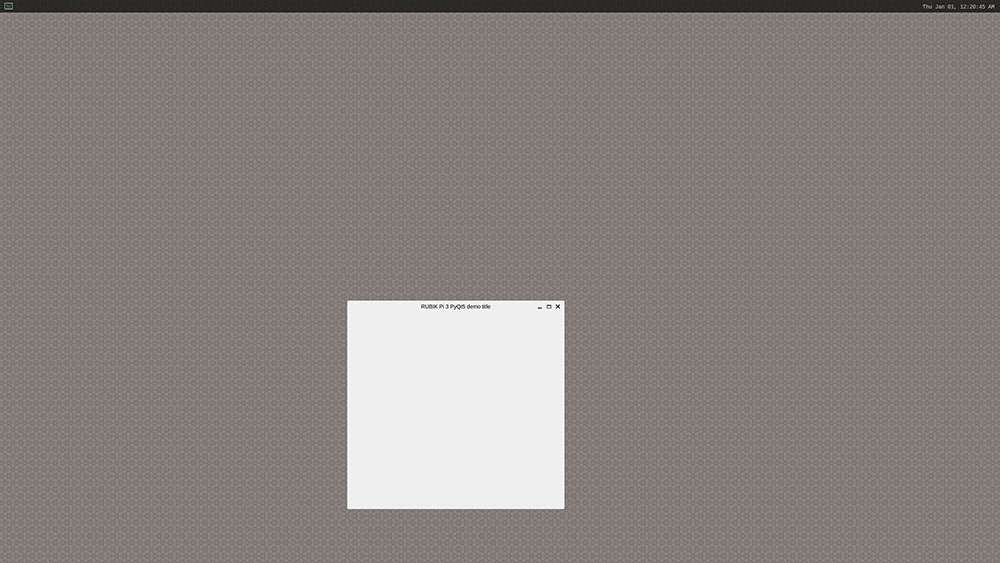
The execution result is as follows: