User Guide to IQ9_config
IQ9_config is a configuration tool that runs on IQ9.
The IQ9_config command allows for easy configuration of the 40-pin, LED, fan, and other interfaces.
IQ9_config has two modes:
- Command-line mode
Use commands like IQ9_config pin i2c1 enable to configure interfaces.
- Menu mode
Run the IQ9_config command to enter menu mode and follow the prompts to configure interfaces.
In the official released image, the IQ9_config tool may not be the latest version. If you encounter any issues during use, visit (https://github.com/IQ9-ai/tools/tree/IQ9_config) and follow the instructions in README to update the tool.
Command-line mode
Run the IQ9_config -h command to check how to use the tool. The output is as follows:
This is the config tool for IQ9.

Select working mode:
 IQ9_config                        ---> When executed without arguments, enter the menu mode
 IQ9_config [function] [args...]   ---> When executed with arguments, enter cmdline mode

CMDLINE MODE:

IQ9_config [function] -h         View Help Information

function:
 pin                           40 pin header function control(e.g. i2c1, spi2)
 fan                           Fan status control
 temp                          Temperature information view
 res                           Resource information view(e.g. CPU usage, memory usage)
 led                           LED parameter settings
 thermal                       Thermal switch settings
 debug                         Debugging information printing
 display                       Display parameter settings(e.g. resolut)
 audio                         audio information view and parameter settings
 wifi                          WiFi quick connection
 bt                            Switching protocol stack

OTHER

-h, --help                    Print help information
-v                            Print version information
40-pin
- Check how to use IQ9_config:
IQ9_config pin -h
Sample output:
This is the config tool for IQ9.
PIN
Use examples
IQ9_config pin [operation port] [enable/disable]
operation port:
i2c1, i2c3, spi2, uart2_2w, uart2_4w, i2c2, spi6, uart6_2w, uart6_4w, i2c6, spi8, uart8_2w, uart8_4w, i2c8, spi12, uart12_2w, uart12_4w, i2c12, i2s2
- Examples of some commands:
* Enable UART6 in two-wire mode:
``shell IQ9_config pin uart6_2w enable ``
Sample output:
``shell Note: The update is complete and will take effect after restart. ``
After restarting the system, the /dev/ttyHS6 node will appear. Use the method described in UART to test UART6.
* Get the enable status of UART6 in two-wire mode:
``shell IQ9_config pin uart6_2w ``
Sample output: `` uart6_2w current status:enable ``
Debug
- Check how to use IQ9_config:
IQ9_config debug -h
Sample output:
This is the config tool for IQ9.
debug print
Use examples:
IQ9_config debug uart                Get serial port printing status
IQ9_config debug uart on             Enable serial port printing
IQ9_config debug uart off            Close serial port printing
- Examples of some commands:
* Turn off the UART serial terminal:
``shell IQ9_config debug uart off ``
Sample output:
Console status set success

The modification will take effect after the system restarts
After the serial terminal is restarted, there will be no printed output once the kernel is loaded.
Thermal
- Check how to use IQ9_config:
IQ9_config thermal -h
Sample output:
This is the config tool for IQ9.
thermal
Use examples:
IQ9_config thermal cpu [enabled/disabled]        cpu thermal on/off control
IQ9_config thermal cpu                           cpu thermal status get
- Examples of some commands:
* Obtain the current CPU thermal management status:
``shell IQ9_config thermal cpu ``
Sample output:
``shell current cpu thermal is:disabled ``
Fan
- Check how to use IQ9_config:
IQ9_config fan -h
Sample output:
This is the config tool for IQ9.
FAN
Use examples:
IQ9_config fan speed [speed_value]
speed value:
speed value: 0-255, 0 is stop, 255 is max speed
- Examples of some commands:
* Set the fan speed to 255:
``shell IQ9_config fan speed 255 ``
Before setting the fan speed to a fixed value, disable CPU thermal management using the IQ9_config thermal disable command. :::
LED
- Check how to use IQ9_config:
IQ9_config led -h
Sample output:
This is the config tool for IQ9.
LED
Use examples:
IQ9_config led heartbeat [on/off]             heartbeat led on/off control
IQ9_config led heartbeat [blue/green/red]     heartbeat led Color selection
IQ9_config led heartbeat                      heartbeat brightness and color get
IQ9_config led brightness [0-511]             heartbeat brightness set
IQ9_config led [blue/green/red] [0-511]       led brightness set
IQ9_config led [blue/green/red]               led brightness get
IQ9_config led off                            leds off
- Examples of some commands:
* Disable the heartbeat LED:
``shell IQ9_config led heartbeat off ``
Display
- Check how to use IQ9_config:
IQ9_config display -h
Sample output:
This is the config tool for IQ9.
display
Use examples:
IQ9_config display resolut [resolution_value]
resolution_value:
edidAdaptiveResolution 1280x720x60 1920x1080x60 2560x1440x60, 3840x2160x30
- Examples of some commands:
* Fix the HDMI OUT resolution to 1080P display.
``shell IQ9_config display resolut 1920x1080x60 ``
Sample output. The configuration takes effect after the system is restarted:
``shell The update is complete and will take effect after restart. ``
BT
- Check how to use IQ9_config:
IQ9_config bt -h
Sample output:
This is the config tool for IQ9.
BT
Use examples:
IQ9_config bt protocol             Retrieve the current protocol stack
IQ9_config bt protocol bsa         Set the protocol stack to BSA
IQ9_config bt protocol bluez       Set the protocol stack to BlueZ
- Examples of some commands:
* Switch the BT protocol stack to Bluetooth Stack for Android (BSA):
``shell IQ9_config bt protocol bsa ``
Sample output:
``shell Setting successful ``
Audio
- Check how to use IQ9_config:
IQ9_config audio -h
Sample output:
AUDIO
Use examples:
IQ9_config audio card                   audio card info
IQ9_config audio pcm                    audio pcm info
IQ9_config audio output [hdmi/headset]  audio output info view and setting
IQ9_config audio volume [vol_val]       audio volume info view and setting
- Examples of some commands:
* Set the output volume to 180 (range: 0 – 191).
``shell IQ9_config volume 180 ``
Wi-Fi
- Check how to use IQ9_config:
IQ9_config wifi -h
Sample output:
This is the config tool for IQ9.
WIFI
Use examples:
IQ9_config wifi                      Network card status
IQ9_config wifi connect              Connect to Wi-Fi according to the configuration
                                         (/etc/IQ9_config/IQ9_config.ini) in the configuration file
IQ9_config wifi scan                 Scan nearby Wi-Fi signals
IQ9_config wifi [ssid] [passphrase]  Connect to the corresponding Wi-Fi based on account and password
IQ9_config wifi down                 Turn off Wi-Fi
IQ9_config wifi up                   Turn on Wi-Fi
sh-5.1#
- Examples of some commands:
* Scan for nearby Wi-Fi networks.
``shell IQ9_config wifi scan ``
Sample output:
``yaml SSID: SSID: DLSP-V6 SSID: ThunderSoft-Dump SSID: ThunderSoft-Office SSID: ThunderSoft-Dumb SSID: ThunderSoft-Office SSID: ThunderSoft-Dump SSID: ThunderSoft-Guest SSID: ThunderSoft-Dumb SSID: DLSP-V6 ``
Temperature
- Check how to use IQ9_config:
IQ9_config temp -h
Sample output:
This is the config tool for IQ9.
TEMP
Use examples:
IQ9_config temp all                all zone temperature
IQ9_config temp zone [zone_num]    znoe temperature
- Examples of some commands:
* Display the temperature of all temperature zones:
``shell IQ9_config temp all ``
Sample output:
``shell Thermal zone 0 pm7325-thermal:37.00 °C Thermal zone 1 pm8350c-thermal:37.00 °C Thermal zone 2 pm8350c-bcl-lvl0:0.00 °C Thermal zone 3 pm8350c-bcl-lvl1:0.00 °C Thermal zone 4 pm8350c-bcl-lvl2:0.00 °C Thermal zone 5 aoss0-thermal:48.00 °C Thermal zone 6 cpu0-thermal:48.40 °C Thermal zone 7 cpu1-thermal:47.70 °C Thermal zone 8 cpu2-thermal:47.70 °C Thermal zone 9 cpu3-thermal:47.30 °C Thermal zone 10 cpuss0-thermal:47.70 °C Thermal zone 11 cpuss1-thermal:48.40 °C Thermal zone 12 cpu4-thermal:48.00 °C Thermal zone 13 cpu5-thermal:46.90 °C Thermal zone 14 cpu6-thermal:47.70 °C Thermal zone 15 cpu7-thermal:47.30 °C Thermal zone 16 cpu8-thermal:47.70 °C Thermal zone 17 cpu9-thermal:47.70 °C Thermal zone 18 cpu10-thermal:48.40 °C Thermal zone 19 cpu11-thermal:48.00 °C Thermal zone 20 aoss1-thermal:48.80 °C Thermal zone 21 gpuss0-thermal:48.00 °C Thermal zone 22 gpuss1-thermal:48.00 °C Thermal zone 23 nspss0-thermal:47.60 °C Thermal zone 24 nspss1-thermal:47.60 °C Thermal zone 25 video-thermal:48.00 °C Thermal zone 26 ddr-thermal:48.80 °C Thermal zone 27 mdmss0-thermal:48.00 °C Thermal zone 28 mdmss1-thermal:46.50 °C Thermal zone 29 mdmss2-thermal:46.90 °C Thermal zone 30 mdmss3-thermal:48.00 °C Thermal zone 31 camera0-thermal:48.80 °C Thermal zone 32 xo-thermal:43.82 °C Thermal zone 33 quiet-thermal:46.78 °C Thermal zone 34 sdm-skin-thermal:45.23 °C Thermal zone 35 qcom-battmgr-bat:25.00 °C ``
Resource
- Check how to use IQ9_config:
IQ9_config res -h
Sample output:
This is the config tool for IQ9.
res
Use examples:
IQ9_config res all    Display CPU, memory and disk information
IQ9_config res mem    Display memory information
IQ9_config res cpu    Display CPU information
IQ9_config res disk   Display disk information
- Examples of some commands:
* Display the CPU usage:
``shell IQ9_config res cpu ``
Sample output:
``shell CPU Usage: 0.25% ``
Menu mode
Run the IQ9_config command to enter menu mode:
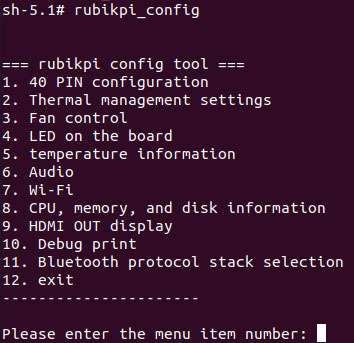
Type an item number as needed and press Enter.
For example, set the brightness of the heartbeat LED to 20:
1. Type "4" and press Enter to go to LED settings:
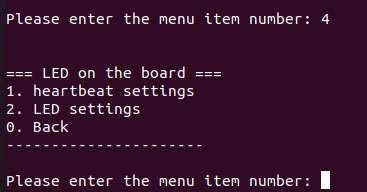
2. Type "1" and press Enter to go to heartbeat light settings:
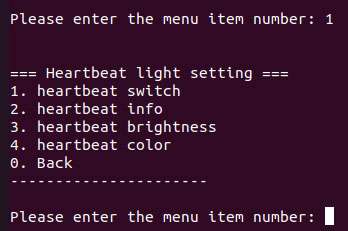
3. Type "3" and press Enter to set the heartbeat LED brightness:

4. Type the brightness: Type "20" and press Enter.

5. Press Ctrl + C to exit the configuration tool.